Visitor information that answers questions before the desk
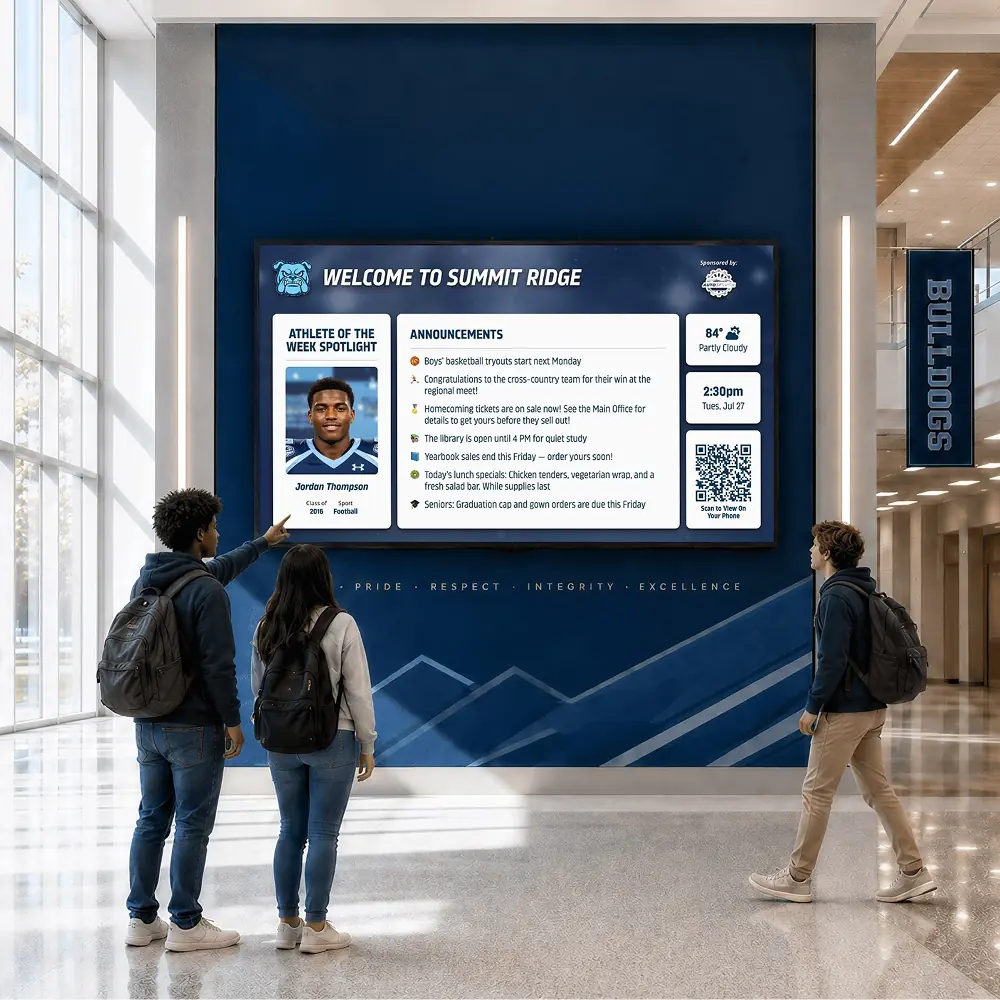
Visitors arrive with the same few questions: where to sign in, where to park and when the office closes. A screen in the vestibule or front lobby can answer them while the front desk helps the person in front of them.





Trusted by 1,500+ schools and organizations4.9/5 customer satisfaction
Schools and colleges that run on Rocket





Why it matters
The front desk answers the same questions all day
Office staff stop what they are doing to explain the sign-in process, the late-pickup rules or where tonight’s meeting is. Paper signs on the door curl up and get ignored. A clear screen takes some of that load off the desk.
Ideas for Visitor Information
Check-in steps
Show the steps your school uses, such as press the buzzer, show ID and sign in, in large numbered text.
Office hours and contacts
List front office hours and the main number for questions after hours.
Where today’s meeting is
Point evening guests to the room for the PTA meeting or parent workshop with a simple arrow and room name.
Parking and pickup rules
Remind families where visitors park and how the pickup loop works.
Volunteer check-in
Tell volunteers where to check in and which forms your district asks for before they help.
Welcomes in families’ languages
If your families speak several languages, add a welcome slide in each one, written and checked by your staff.
How it works with Digital Signage
Visitor Information, step by step.
Three steps
Keep the basics always on
Add check-in steps and office hours as standing items with no end date.
Add event-day details
For conferences or a board meeting, add a slide with that day’s directions and set it to end when the event does.
Update from the desk
Front office staff change the screen from a browser, then look at the preview to see what visitors see.
Setups vary by school; your demo confirms what yours will use.
Best practices
Tips to get it right.
Visitor Information tips
Write for the doorway
A visitor reads the screen while waiting to be buzzed in. Use short steps and big numbers.
Match the posted procedures
The screen should say exactly what your safety plan and front desk say about checking in.
Mount it where people pause
Choose the spot between the doors or beside the window where guests wait.
Leave sensitive details off
Do not post door codes, staff schedules or anything you would not tell a stranger.
Keep exploring
More Digital Signage use cases
Questions
Visitor Information questions
A lobby screen plays its own timeline, so standing information like check-in steps can stay on while event details come and go on the dates you set. Staff update it from a browser.
Yes. Add a QR code slide with your logo and a title. Scanning it opens the screen on the visitor’s phone so they can keep reading.
No. A screen shows information to people as they arrive. Sign-in, ID checks and visitor badges stay with your existing process.
Start with the screen closest to your front door. Send us its make and model if you have it, and we confirm whether it can be used before quoting the setup you choose.
Your next step
Plan your Digital Signage.
We'll show how an announcement gets on screen and comes off again when the moment has passed.
