Keep your school in the loop.
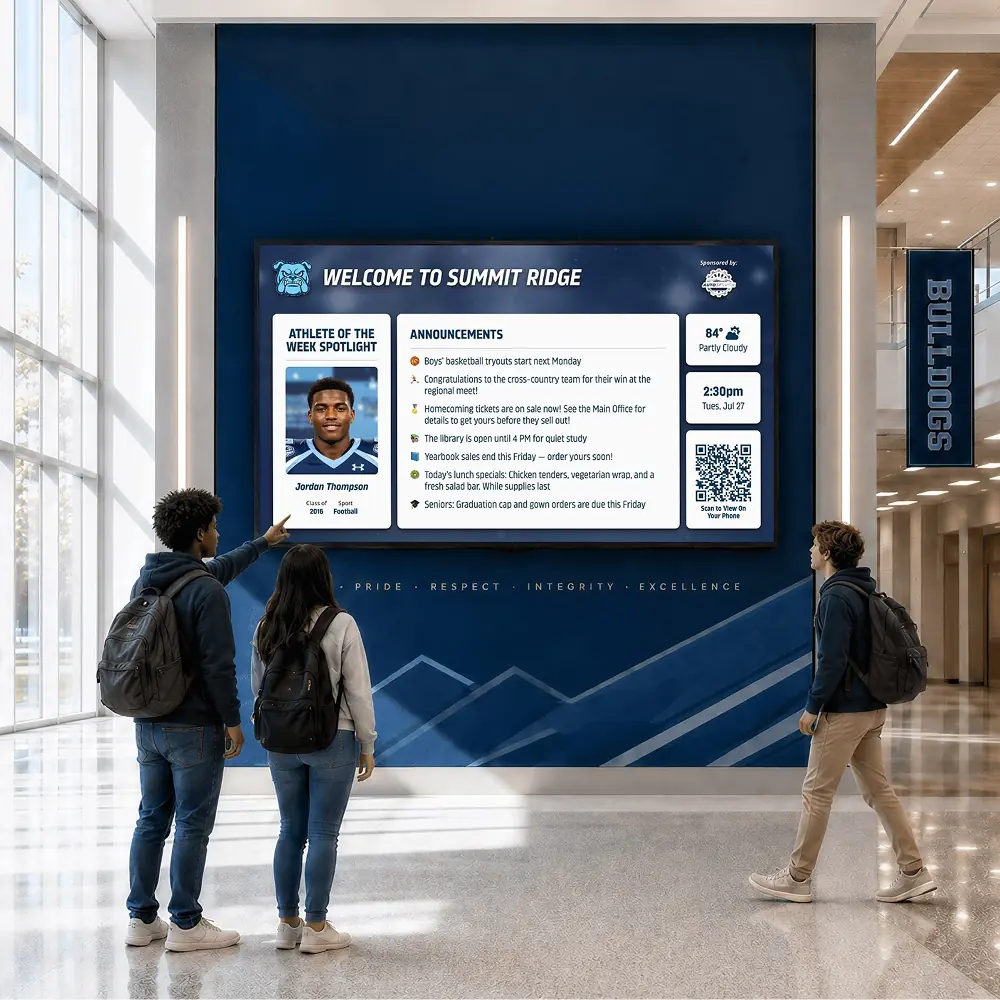
Make announcements, upcoming events and everyday achievements visible on campus screens. Give students and visitors something worth looking up for.
Screen details welcome, never required. We check compatibility with you before anything is ordered.





Trusted by 1,500+ schools and organizations4.9/5 customer satisfaction
Schools and colleges that run on Rocket





Sound familiar?
The hallway TV still says homecoming is next week.
Most schools already have a screen or two. Keeping them current is the hard part when every change means a walk to the TV, a new USB stick or a request to the one person who knows how.
Posters that blend into the wall
Flyers go up on Monday and disappear into the background by Wednesday. By Friday, half of them are out of date.
A slideshow on a loop
Someone built it in August. Changing one slide means finding the file, the laptop and the TV it plays on.
One person holds the keys
When only the tech coordinator can update the screens, the week’s news waits in their inbox.
A school day in view
Useful in the morning. Worth noticing all day.
At the entrance
Welcome visitors, introduce the week’s events and give families a quick sense of what is happening at school.
Between classes
Make room for club reminders, academic achievements, performances and the everyday work students are proud of.
Before the game
Put the next event, team celebration or community announcement in front of the people arriving on campus.
At lunch
Post this week’s menu, a club fair reminder or a schedule change where students line up every day.
In the library
Rotate reading challenges, new arrivals and research-help hours for the students who stop to browse.
Outside the auditorium
Promote the spring musical, introduce the cast and greet families on their way to their seats.
Monday’s announcement on. Friday’s off.
Each screen plays a timeline of content, in order. In your demo, we’ll take one announcement through its whole life on a screen.
 1
1Friday’s home gameStarts Monday · Ends Friday night
 2
2Fall Arts ShowcaseStarts this week · No end date yet
- Picture day is Tuesday3
AnnouncementEnds Tuesday afternoon
- Spring sports sign-ups4
HiddenKept until it’s needed
What we'll show you
Add it to the timeline
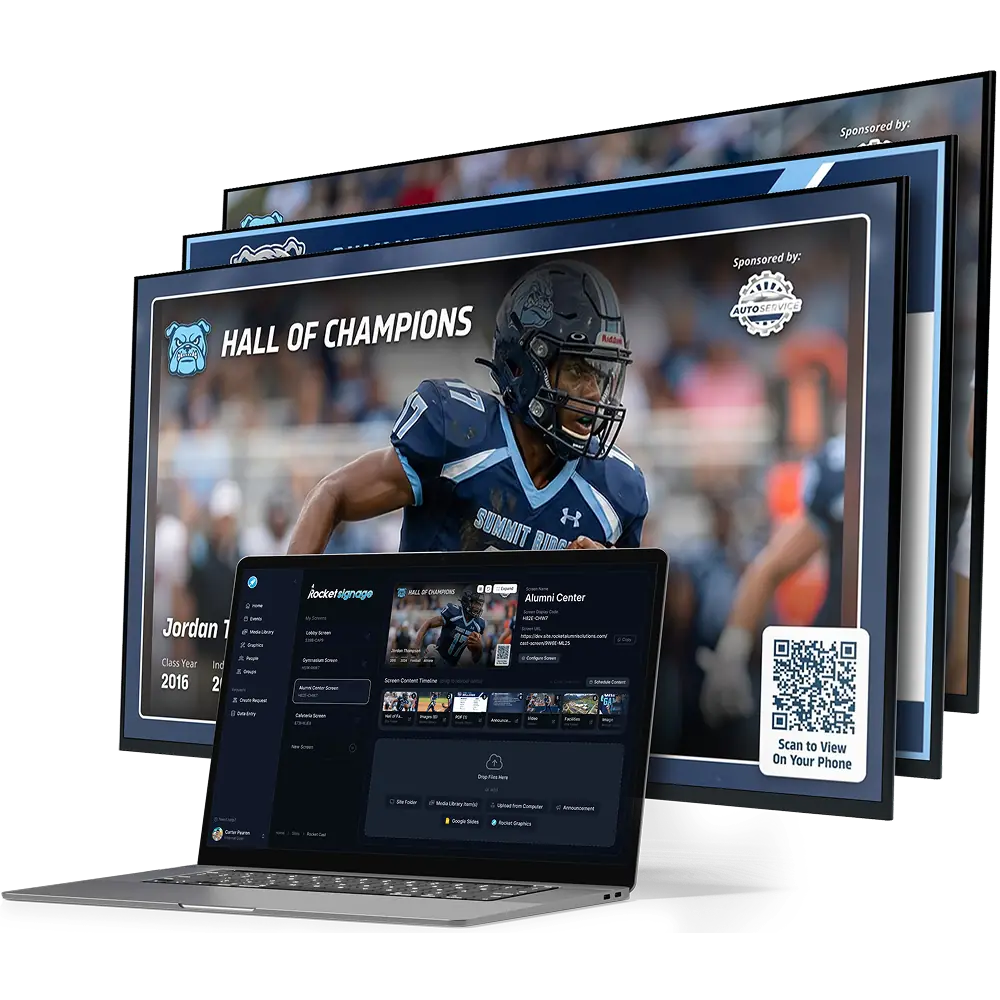
Add an announcement, a photo or video from your library, a Rocket site folder or a file from your computer.
Set when it plays
Give it a start and an end, or leave either open. Drag to change the order.
Hide or remove it
Take it off the screen when the moment has passed, or hide it until it’s needed again.
Signage features can vary by Rocket setup; your demo confirms what your screens will use.
What a screen can play
Use what your school already makes.
Most of what belongs on a school screen already exists: the front office’s slide deck, photos from Friday’s game, your hall of fame. Rocket puts it on the timeline without rebuilding it.
Your Rocket site
Play a folder from your recognition site, such as this year’s inductees or a team’s records, with photos and descriptions.
Google Slides
Link a shared deck once and it plays full-screen. Edits made in Slides reach the screen on its next refresh, about every 20 minutes.
Photos, video and PDFs
Add game highlights, the concert program or the flyer the PTA sent over, straight from your library or computer.
Quick announcements
Type a short message for picture day or a late bus without designing a slide.
Time and local weather
Show the time and the forecast for your ZIP code. People glance up to check them and stay for the next message.
A QR code for the details
Add your logo, a title and a QR code that opens the screen on a visitor’s phone so they can keep reading.
Need a new graphic? Make one in Rocket Graphics, download it and add it to the timeline.
When every screen needs the same message
One message on every screen, right away.
When the weather turns or plans change, switch on an alert. It replaces the regular content on every screen set to allow alerts, across all of your Rocket sites. Use Critical for urgent situations and Notice for updates like an early dismissal. Switch it off and the screens return to their timelines.
Screen alerts give people one more place to see the message. They work alongside your school’s emergency notification system, not in place of it.
Be ready before you need it
Choose the screens
Decide which screens may be interrupted, such as the lobby, cafeteria and gym.
Name who sends
Agree on who can post an alert and who covers when they’re out.
Keep wording ready
Keep short, approved messages for closures and early dismissals in your safety plan, ready to paste.
Practice it
Try it during a drill so staff know what the screens will show.
A screen people actually read
Fresh enough to notice. Short enough to read in passing.
A hallway screen gets a few seconds of attention. Keep a steady rhythm of short, timely messages and checking the screen becomes a habit.
Four rules for a hallway screen
One message per slide
If it needs a paragraph, it belongs in the newsletter. Lead with what and when.
Big, high-contrast text
Write for someone walking past at the far end of the hall.
A clear next step
Tell people where to go, what to bring or what to scan.
An end date on everything
Set when each item stops playing so last week’s news leaves on its own.
Ideas for the school year
Fall
Welcome week, the club fair, fall sports schedules and a homecoming lineup.
Winter
Concerts, food drives, honor roll, weather closures and winter sports.
Spring
The musical, signing day, spring sports, awards night and graduation details.
More than the athletic lobby.
The whole school deserves a place on screen.
Balance event reminders with student work, staff recognition and community stories. A strong campus screen reflects the arts, academics and activities as well as game day.
Signage is for messages people see as they pass. For a visitor-led experience that explores years of history, see History Showcase.
Explore History Showcase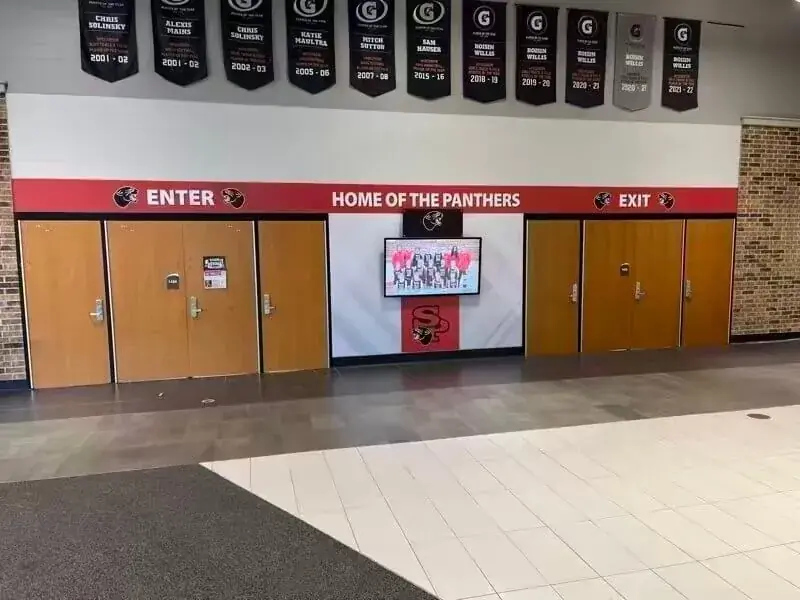
From a Rocket school
Chase and his team have been nothing less than expected in helping us build this project to help improve our communication and promotion of our school.
 David HauserStevens Point Area Senior High School
Start small
One screen this month. Every building when you’re ready.
Start with the lobby
Set up one screen, learn the timeline and see what people stop to read.
Give each space its own timeline
Every screen plays its own content, so the cafeteria and the athletic lobby can say different things.
Bring in every building
Add screens for each of your Rocket sites under one login, check which are online and send one alert to all of them.
What it takes to get started.
Before you book
- Your screens
- A screen can run the Rocket app from Apple’s App Store or Google Play, or use a Rocket Signage Stick in any TV with an HDMI port. We check your makes and models with you before you plan new equipment.
- Your building
- Your facilities and IT teams confirm power, placement, mounting and network.
- Your content owner
- Decides which messages suit each location and keeps the timeline current.
- Pricing
- Quoted for the screens and setup you choose. Compare display options.
40 ways schools use it
Digital Signage use cases
Start with the job your school needs done. Each guide covers what to include, how it works with Rocket and the questions schools ask first.
Everyday communication
The announcements, schedules and reminders a school shares every day.
- Daily AnnouncementsPut the morning’s announcements on hallway screens so students read them between classes.
- Bell SchedulesShow today’s bell schedule on campus screens, including the late-start and assembly days.
- Lunch MenusPost this week’s lunch menu where students line up, so the choices are clear before the tray.
- Bus and Dismissal UpdatesShare bus changes, late buses and pickup notes on screens near the exits at the end of the day.
- Weather Delays and ClosingsSwitch your screens to a delay or early-release notice at once, then back to normal when it’s over.
- School CalendarKeep the next few weeks of school events on screen, with each item leaving when its date passes.
- Club and Activity RemindersGive every club a place on screen for meeting times, sign-ups and the next event they’re running.
- College and Scholarship DeadlinesKeep college application, FAFSA and scholarship deadlines in front of juniors and seniors all year.
- Staff Room ScreensGive teachers a staff room screen for duty rosters, PD dates, deadlines and shout-outs to colleagues.
- Emergency AlertsPut one urgent message on every alert-enabled screen at once, alongside your emergency notification system.
Spaces across campus
Give each screen a job that fits the people who pass it.
- Welcome ScreenGreet students, families and guests at the main entrance with a screen that says what’s happening today.
- Campus Info ScreenRun one main campus info screen with the day’s news, events, weather and the best of your school.
- Visitor InformationHelp visitors find the office, sign in and know what to expect with a clear screen near the entrance.
- Campus WayfindingPoint guests to the gym, auditorium and offices on event nights with simple wayfinding screens.
- Cafeteria ScreensUse the lunch line for menus, club reminders and celebrations students read while they wait.
- Library ScreensPromote new books, reading challenges and research help on a screen near the library entrance.
- Gym and Athletic Lobby ScreensShow game schedules, team photos and records to fans arriving at the gym and athletic lobby.
- Auditorium Lobby ScreensPut the next concert or play, the cast and tonight’s program in front of families in the lobby.
- Admissions Lobby ScreensShow prospective families student life, programs and real achievements while they wait for a tour.
- District Office Lobby ScreensShare district news, board meeting dates and school highlights with visitors to the central office.
Events and countdowns
Build anticipation for the dates your school looks forward to.
- Event CountdownCount down to the big night with dated slides that change on schedule and come down when it’s over.
- Game Day ScreensPut tonight’s opponent, start time and ticket details on campus screens from morning until kickoff.
- Homecoming WeekRun the homecoming schedule, dress-up days, court and game details on campus screens all week long.
- Spirit WeekShow each day’s spirit week theme, class competition standings and photos where students gather.
- Graduation CountdownCount down the last days for seniors with deadlines, rehearsal times and ceremony details on screen.
- Performing Arts PromotionPromote concerts, plays and the spring musical with show dates, cast photos and ticket details on screen.
- Fundraising CampaignsKeep a fundraiser’s goal, deadline and how-to-give steps in view without hanging another banner.
- Prom and School DancesShare prom and dance tickets, dress code, deadlines and the night’s details where students will see them.
- Open House and Back-to-School NightGreet families at open house with a welcome, room directions and the night’s schedule on every screen.
- Testing Week RemindersRemind students about test dates, schedules, what to bring and quiet hallways during testing week.
Celebration and culture
Put students, staff and achievements where the whole school can see them.
- Student of the MonthCelebrate student of the month winners with a photo, a teacher’s words and why they were chosen.
- Staff SpotlightsIntroduce teachers, coaches and support staff with a photo and a fun fact so students know who’s who.
- Honor RollRecognize honor roll students each grading period on campus screens, with names approved by the school.
- Birthday ShoutoutsWish students and staff a happy birthday on campus screens with a simple, inclusive daily slide.
- Athlete SpotlightsFeature student athletes with game photos, highlights and a coach’s words, from signing day to senior night.
- Hall of Fame SlideshowPlay your hall of fame inductees as a slideshow on hallway screens, straight from your Rocket site.
- Student Artwork GalleryShow student art, photography and design work on campus screens, with each artist’s name and grade.
- Weekly Results RecapRecap the week’s scores, meet results and academic team finishes on Monday morning screens.
- Heritage and Awareness MonthsRecognize heritage and awareness months with student-researched profiles, local history and events.
- Positive Behavior RecognitionCelebrate PBIS goals and positive behavior with schoolwide shoutouts, rewards and progress on screen.
For principals, ADs and advancement teams
Why school leaders choose Rocket.
A project your school community sees every day needs a partner that answers quickly and stays for the long run.
- schools and organizations
- 1,500+
- touchscreen installations
- 2,000+
- customer satisfaction
- 4.9/5
- average chat response
- < 10 s
Help in seconds, not tickets
24/7 live chat from Rocket’s Boston team, with a personal customer success contact from kickoff onward.
Your staff don’t do it alone
Rocket can prepare your names, photos and records. See content help.
Ready for your IT review
Encrypted data, SSO and student-data commitments for K-12. Read about security.
Built to grow with you
Unlimited content with no per-profile fees, and new features as Rocket releases them.
Questions
A few practical questions
Often, yes. Some smart TVs and streaming players can run the Rocket app from Apple’s App Store or Google Play, and the Rocket Signage Stick plugs into a TV’s HDMI port. Share the make and model of each display and any connected player and we’ll check compatibility before you plan new equipment.
You update every screen from a browser instead of walking to each TV. Items start and stop on the dates you set, each screen can play something different, and one alert can take over all of them when needed.
No. Play folders from your Rocket site, link a Google Slides deck, upload photos, video and PDFs, or type a quick announcement. For a new graphic, Rocket Graphics can make one to download and add.
Staff can switch on an alert that replaces the regular content on every screen set to allow alerts, across your Rocket sites, and switch it off when it’s over. Screen alerts work alongside your school’s emergency notification system, not in place of it.
Yes. The editor shows a preview of each screen and whether it’s online, and you can copy a preview link to share with a colleague.
Digital Signage presents messages for people passing a screen. History Showcase is the interactive recognition experience where visitors choose profiles, records and archives to explore.
A staff content owner. Start and end times take scheduled items on and off the screen; your demo shows the steps so you can judge the time it takes before you commit.
We quote signage for the screens and spaces you choose. In a demo we’ll check your setup, confirm availability and price the project. Model numbers help but aren’t required to start.
Your next step
Make the next school announcement worth looking up for.
See an announcement go on screen and come off again, then plan the spaces you want people to notice.
