Media for advancement and alumni teams, from every decade
Advancement work runs on photos from the past: the 1998 state team, the old gym, last spring’s donor reception. When those images live in one library with names and dates attached, a reunion invitation or donor update starts with the right photo instead of a week of asking around.





Trusted by 1,500+ schools and organizations4.9/5 customer satisfaction
Schools and colleges that run on Rocket





Why it matters
Old photos are hard to find when donors call
Archive photos sit in boxes, retired staff members’ files and drives nobody has opened in years. When a reunion committee or major donor asks for a photo, the office often can’t find it or can’t say who is in it.
Ideas for Advancement and Alumni Office Media
Folders by class year
Reunion committees think in class years. A folder for each class makes their requests quick to answer.
Donor and event photography
Keep receptions, groundbreakings and giving days together so stewardship reports have images ready.
Before-and-after building shots
Pair old photos of a space with photos after a renovation. Donors like seeing what their gift changed.
Names in every caption
Identify people while someone still remembers them. An unnamed photo is hard to use in an alumni story.
Hall of fame inductee images
Gather each inductee’s photos from their school years and from the ceremony in one place.
Scanned programs and publications
Upload old event programs and alumni newsletters as PDFs so the details travel with the photos.
How it works with Media Management
Advancement and Alumni Office Media, step by step.
Three steps
Organize by class year and event
Set up folders for class years, reunions, donor events and inductions, nested the way your office already works.
Bring in archive and new media
Upload scanned photos, programs and recent event shots in batches, then add names, dates and tags so they stay with each file.
Search when a request comes in
Search by a name, a year or a short description, preview the photo and its details, and download it for an invitation, report or induction.
Setups vary by school; your demo confirms what yours will use.
Best practices
Tips to get it right.
Advancement and Alumni Office Media tips
Ask alumni to help with names
Reunions are a great chance to identify faces in old photos. Bring printouts and update captions afterward.
Tag donor-sensitive images
Some donors prefer privacy. Tag photos with use limits so staff see them before choosing.
Keep stewardship photos with dates
Record the date and the gift or project in the caption. Reports written years later will need both.
Coordinate with athletics and communications
Many of the best alumni photos come from other offices. Agree on shared folders rather than keeping separate copies.
Keep exploring
More Media Management use cases
Questions
Advancement and Alumni Office Media questions
Rocket keeps photos, videos and documents from every decade in one library with names, dates and captions attached. Staff search by name, year or description and download the right file for reunions, donor updates and inductions.
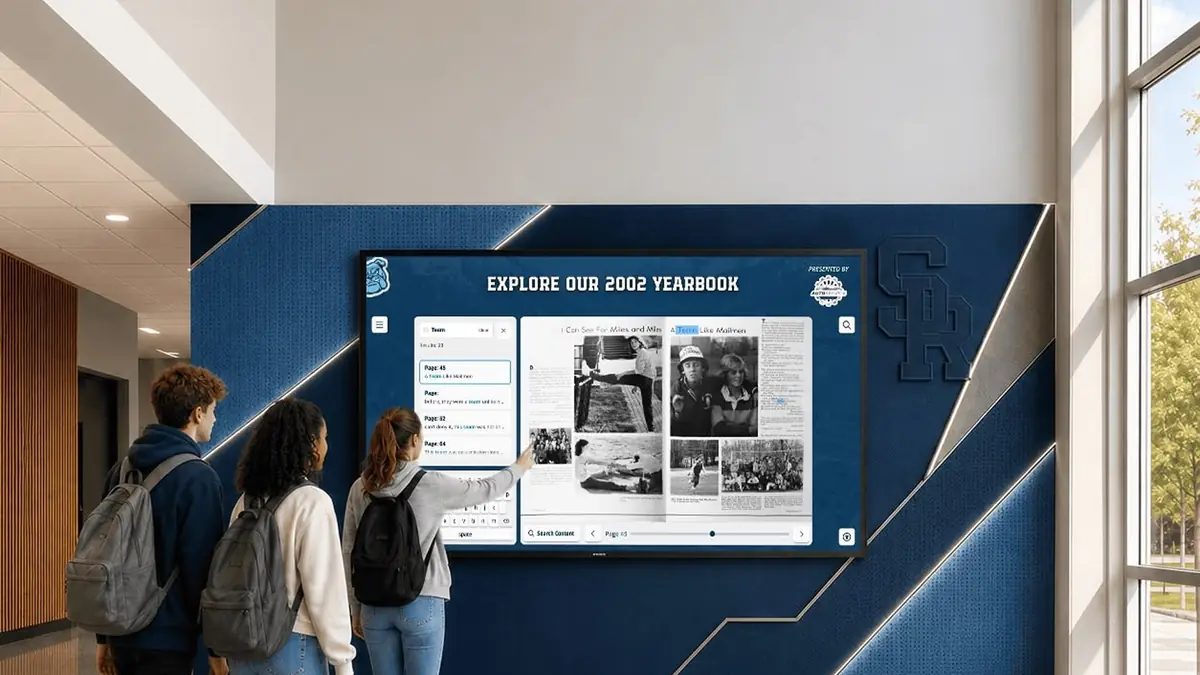
The library is for your staff, and uploading a file doesn’t make it public. If you want alumni to explore school history, History Showcase is the offering built for that, and your demo can show both.
Rocket can discuss scanning and content-preparation help as part of your project. What is included is confirmed in your proposal.
Pick one upcoming reunion or induction and gather the photos it needs first. Each request after that adds to the library, and pricing is confirmed for your setup.
Your next step
See Media Management in action.
We'll show how your team finds the right photo and puts it to work, start to finish.
