One folder for every school event, from concert to field day
The spring concert ends at nine and the photos arrive from four phones and a parent’s camera. Rocket lets you upload the whole event into one folder, add the details while you remember them and find the best shot when the newsletter is due.





Trusted by 1,500+ schools and organizations4.9/5 customer satisfaction
Schools and colleges that run on Rocket





Why it matters
Event photos scatter the night they’re taken
Every event produces photos from staff, students and families, and each person keeps their own copy. Without a shared folder, the newsletter editor ends up texting around for a shot that already exists.
Ideas for Event Photo Collections
Standing folders for annual events
Keep Homecoming, Field Day and Spring Concert as parent folders with a subfolder for each year, so past years are one click away.
Setup and behind-the-scenes
Include rehearsal, setup and volunteer shots. They tell the story of the event and are useful for thank-you notes.
The program as a PDF
Upload the printed program to the same folder. It keeps the names and order of the night with the photos.
A short list of favorites
Tag the five or six strongest shots as “pick” so the next person can start with them.
Captions with who and what
Note the group, the piece or the moment, like “Jazz band, final number.” That line makes the photo searchable.
Room for one-time events
Give a groundbreaking, a visiting author or a state trip its own dated folder under the school year.
How it works with Media Management
Event Photo Collections, step by step.
Three steps
Open or create the event folder
Pick the site and the folder for the event, or add a new one under the right year.
Drop in the whole night
Upload the event’s photos, videos and program together. PDFs finish converting in the background while you start on captions.
Choose shots for the story
Search within the folder, sort the results, preview your picks and download them or copy a link for your post.
Setups vary by school; your demo confirms what yours will use.
Best practices
Tips to get it right.
Event Photo Collections tips
Set an upload deadline
Ask contributors to send photos within two days of the event, while names and moments are easy to recall.
Point every photographer to one spot
Give staff and volunteers one place to send event photos so nothing stays stuck in a group chat.
Delete duplicates after the pick
Once the favorites are tagged, clear out blurry repeats. Deleted files go to Recently Deleted first, so a mistake can be undone.
Write the caption before the post
Captioning the folder first means the newsletter, the website and the yearbook staff all use the same details.
Keep exploring
More Media Management use cases
Questions
Event Photo Collections questions
Each event gets a folder under the site, nested by year or season as you like. Staff upload the event in a batch, and titles, captions, tags and dates stay with each file.
Yes. Batch uploads can include photos, videos and PDFs, so the recording and the printed program sit next to the pictures.
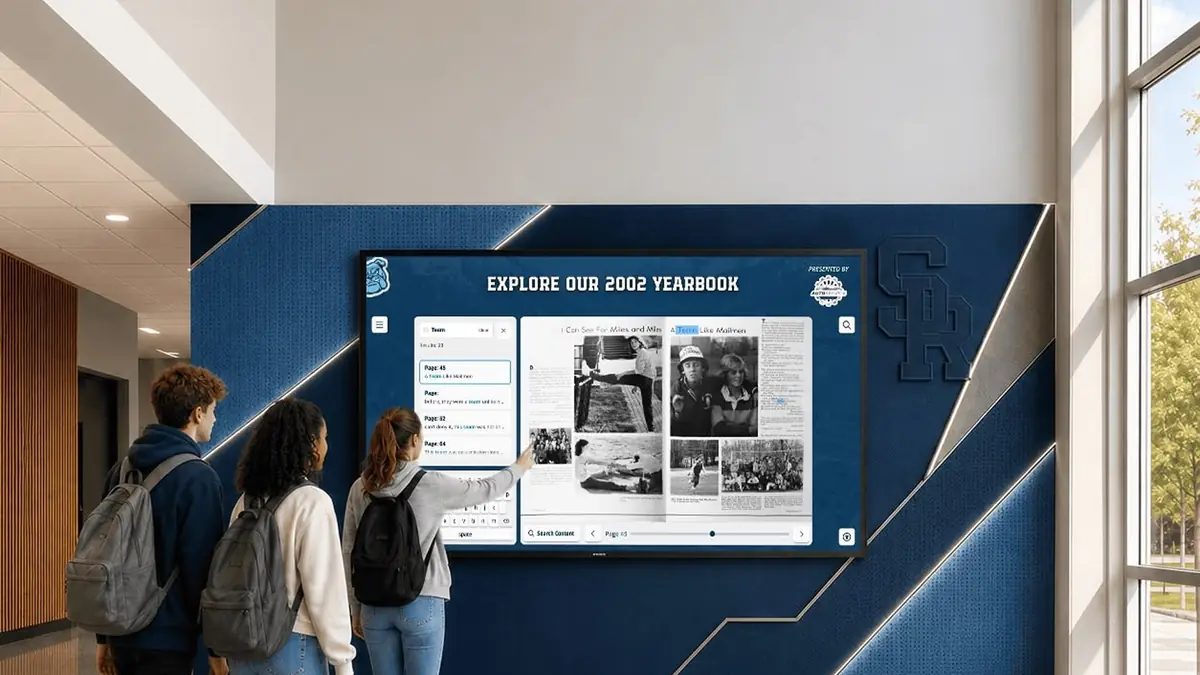
Uploading to the library doesn’t make photos public. Your demo confirms who on your team has access, and staff choose which pictures go to the website, newsletter or Rocket displays.
Choose one upcoming event and set up its folder before it happens. Walk us through that plan in your demo, and the proposal that follows covers access and cost for your setup.
Your next step
See Media Management in action.
We'll show how your team finds the right photo and puts it to work, start to finish.
