A campus info screen that carries the whole school day
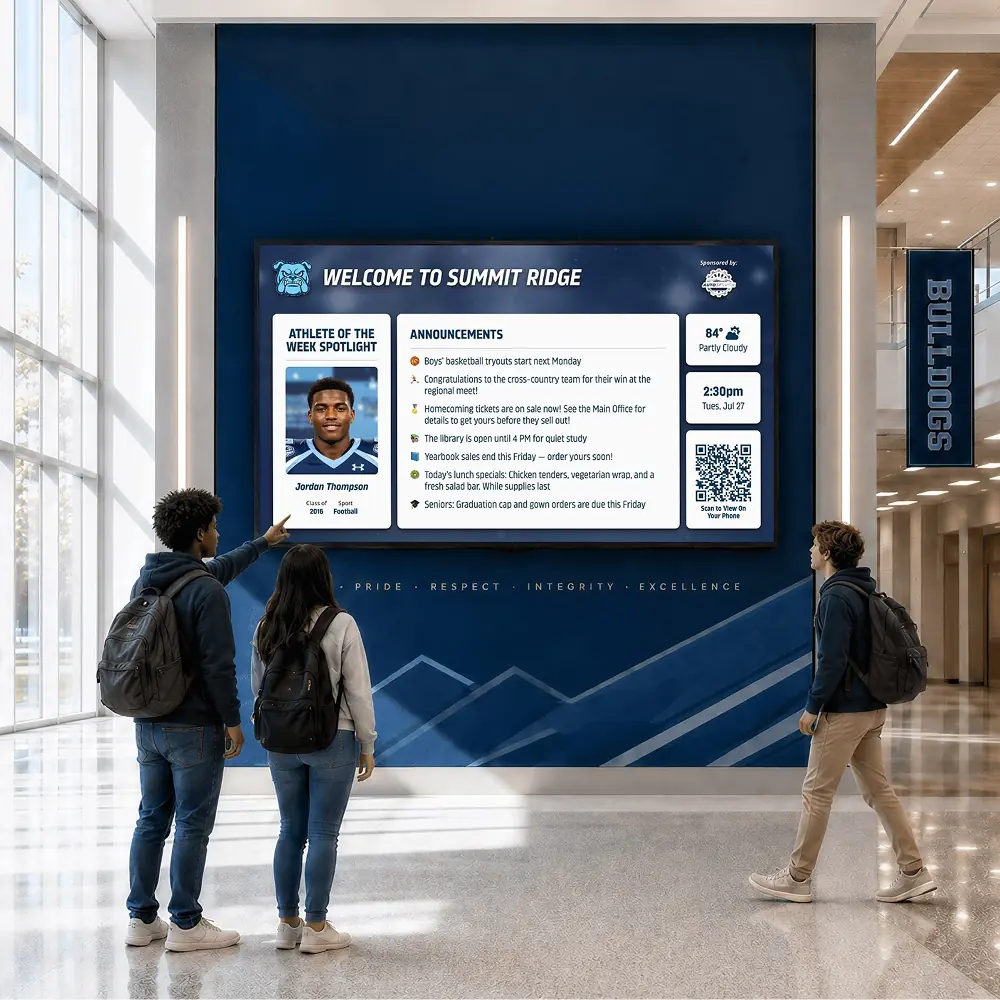
Most schools have one spot every student passes, like the main hallway or the commons. A campus info screen there can carry a little of everything: today’s reminders, upcoming events, the weather and something to be proud of.





Trusted by 1,500+ schools and organizations4.9/5 customer satisfaction
Schools and colleges that run on Rocket





Why it matters
One busy screen tries to say everything at once
When a school has one main screen, every department wants a spot on it. Without a plan, it becomes a crowded loop where nothing stays long enough to read. A simple content mix and a single owner keep it useful.
Ideas for Campus Info Screen
A planned content mix
Decide a rough balance of reminders, events, recognition and weather, so no one category takes over.
Today’s top reminders
Two or three quick announcements for the day, each set to end at dismissal.
Upcoming events with photos
Promote the next game, concert or open house with an image from your media library.
Records and inductees
Play a recognition folder from your Rocket site, such as a team’s records or this year’s inductees.
Arts and academics
Give the art show, debate results and science fair the same screen time as athletics.
Student-made content
Invite a media or yearbook class to submit one slide a week for staff to review and add.
How it works with Digital Signage
Campus Info Screen, step by step.
Three steps
Set up the standing items
Add the content that runs all semester, like a recognition folder and the weather slide, with no end date.
Add timely items on top
Layer in announcements and event promos with start and end dates so they rotate in and drop off.
Keep the order intentional
Drag items so the most urgent message plays first, and hide seasonal pieces until they are needed again.
Setups vary by school; your demo confirms what yours will use.
Best practices
Tips to get it right.
Campus Info Screen tips
Cap the loop length
Ten or so items is a sensible limit for a main screen. Past that, people stop waiting for the slide they care about.
Give one person final say
Departments can send requests, but one owner decides what goes on and in what order.
Balance the whole school
Check monthly that the arts, academics, clubs and staff get time alongside athletics.
Watch what people stop for
Notice which slides draw a crowd in the hallway and make more like them.
Keep exploring
More Digital Signage use cases
Questions
Campus Info Screen questions
The screen plays a timeline you control from a browser. Items can run all semester or for a single day, and you can drag to reorder, hide or remove them as plans change.
Fewer than you think. A short loop of timely items gets read, while a long one gets ignored. End dates let finished items leave without anyone removing them.
Yes. A second screen in the cafeteria or gym gets a separate timeline, so it can say something different. For several buildings, the screens for each Rocket site sit under one login.
The cost depends on the screens and setup you choose, and we quote it after the demo. The demo also checks whether a TV you already own can be used.
Your next step
Plan your Digital Signage.
We'll show how an announcement gets on screen and comes off again when the moment has passed.
