Daily announcements students actually see
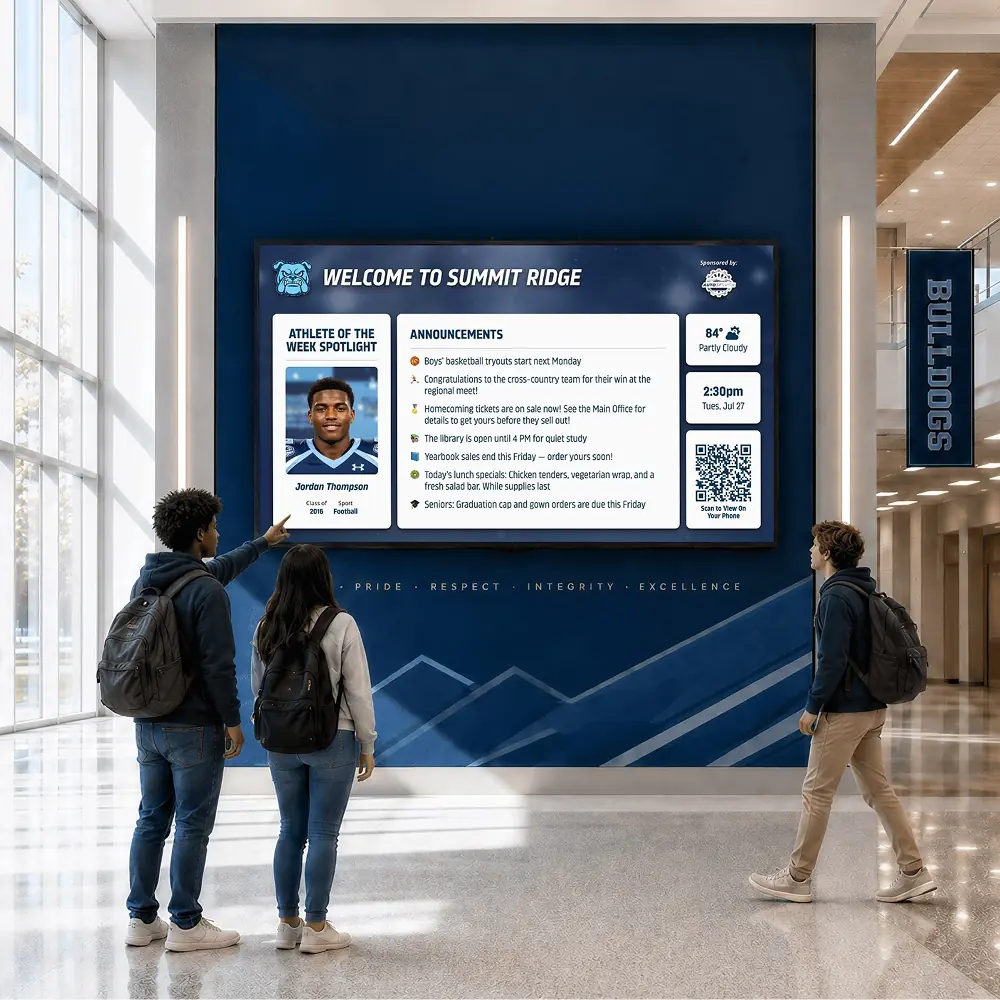
Morning announcements over the PA are gone by second period, and the printed bulletin rarely leaves the office. A hallway screen keeps today’s reminders in view all day, then clears them when the day is done.





Trusted by 1,500+ schools and organizations4.9/5 customer satisfaction
Schools and colleges that run on Rocket





Why it matters
Announcements are heard once and then forgotten
The PA reads the list at 7:45 while half the building is still at lockers. Students who miss it ask a teacher, and teachers ask the office. The same reminder ends up repeated five times by lunch.
Ideas for Daily Announcements
Today’s top three items
Lead with the few things most students need today, like a form due or a meeting moved. Save the full list for the newsletter.
Picture day and form deadlines
Give each deadline its own short slide with the date in large type and what to bring.
Room changes and cancellations
Post a cancelled practice or a meeting moved to another room as soon as the office hears about it.
Student-read announcements
If students record the morning announcements, add the video so the hallway can catch what a noisy classroom missed.
A time and weather slide
Add the time and the forecast for your ZIP code between announcements. Students check it before heading outside and see the next reminder in the rotation.
A QR code for the full list
End the loop with a QR code slide that opens the screen on a phone, so students can reread the day’s items on the way to class.
How it works with Digital Signage
Daily Announcements, step by step.
Three steps
Type the announcement
Add a quick announcement in the editor from any browser. A one-line reminder needs no slide design.
Give it an end time
Set it to stop playing at the end of the school day, or leave the end open for a reminder that runs all week.
Reorder as the day changes
Drag the most urgent item to the top of the timeline, and hide anything that is no longer true.
Setups vary by school; your demo confirms what yours will use.
Best practices
Tips to get it right.
Daily Announcements tips
Write it like a headline
Lead with what and when, such as Yearbook photos today, Room 112. Cut anything a student would skip.
Pick one owner for the morning
Name the person who adds the day’s items before first bell, plus a backup for days they are out.
Keep the loop short
A short loop means a student waiting by the screen sees every item before the bell rings.
Match the PA script
Use the same wording on screen as the morning read, so students hear it once and then see it again.
Keep exploring
More Digital Signage use cases
Questions
Daily Announcements questions
Staff type a short announcement in the editor from any browser and set when it starts and ends. Every screen has its own timeline, so the main hallway can carry the day’s list while other screens keep their own content.
Yes. Link the office’s shared Google Slides deck once and it plays full-screen. Changes made in Slides show up on the screen at its next refresh, about every 20 minutes.
Usually the front office or whoever writes the PA script. Your demo shows how staff access works for your school.
Signage is quoted for the screens and setup you choose. You can start with one hallway screen, and your demo checks whether the TVs you already have can run it.
Your next step
Plan your Digital Signage.
We'll show how an announcement gets on screen and comes off again when the moment has passed.
