Dual-screen displays: one to explore, one to announce
Some spaces have two jobs: recognizing people and sharing what is happening this week. Two screens side by side let one invite visitors to explore while the other shows messages people read in passing.





Trusted by 1,500+ schools and organizations4.9/5 customer satisfaction
Schools and colleges that run on Rocket





Why it matters
One screen is often asked to do everything
Schools often try to run announcements, sponsor thanks and hall of fame profiles on a single screen. Visitors who want to browse interrupt the slideshow, and people walking by miss the announcements. Splitting the jobs across two screens keeps each one simple.
Ideas for Dual-Screen Displays
Touchscreen plus signage
Pair a History Showcase touchscreen with a Digital Signage screen for news and events.
Two seasons, two screens
Give fall and spring sports, or boys’ and girls’ programs, their own screen in an athletic lobby.
Hall of fame and records
Put inductee profiles on one screen and record boards on the other.
Then and now
Show historic yearbooks on one screen and this year’s students on the other.
Matched graphics around both
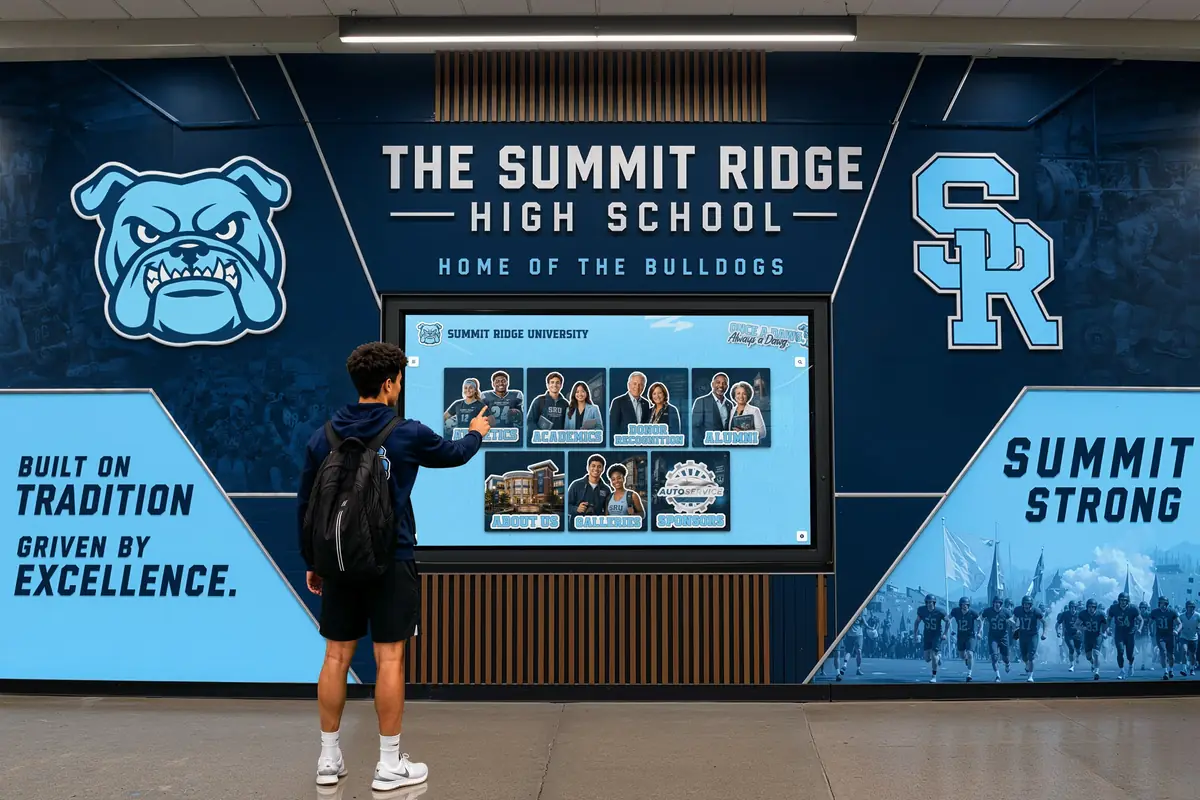
Frame both screens with one branded wall design so they read as a single installation.
Different heights for different users
Mount the signage screen high for crowds and the touchscreen lower for browsing.
How it works with Hardware
Dual-Screen Displays, step by step.
Three steps
Decide each screen’s job
Tell us what you want each screen to do. Rocket matches each job to the right software and hardware, and your demo confirms the two-screen setup.
Plan two power and network drops
Facilities confirms wall space, mounting and an outlet and network connection for each screen. Wired Ethernet is recommended for both.
Launch and manage both screens
Connect both screens and launch. Staff schedule and manage content for each one from Rocket’s dashboard.
Setups vary by school; your demo confirms what yours will use.
Best practices
Tips to get it right.
Dual-Screen Displays tips
Give each screen a clear purpose
Visitors understand two screens faster when one is clearly for exploring and the other for news.
Keep the touchscreen at reach height
When both share a wall, mount the interactive screen lower and the signage screen higher.
See if you already own one
An existing TV may handle the signage side. Share its make and model so Rocket can check it.
Design the wall as one piece
Use consistent framing, colors and spacing so two screens look planned, not added one at a time.
Keep exploring
More Hardware use cases
Questions
Dual-Screen Displays questions
Rocket helps you decide what each screen should do, then provides History Showcase for the interactive side and Digital Signage for messages. Your demo confirms the hardware and mounting for a two-screen layout.
No. Only the screen visitors explore needs touch. A screen that shows announcements can be a compatible non-touch display, which may be a TV you already own.
That is often the goal. Your free installation mockup shows how two screens could sit together, and your demo confirms which wall treatments fit a two-screen layout.
It is quoted for your setup, based on both screens, the mounts and installation arrangements. Reusing a compatible screen for one side can reduce what you need to buy.
Your next step
Plan the right display for your space.
Receive a free customized mockup of what your space could become.
