Fresh photos for the screens your students walk past
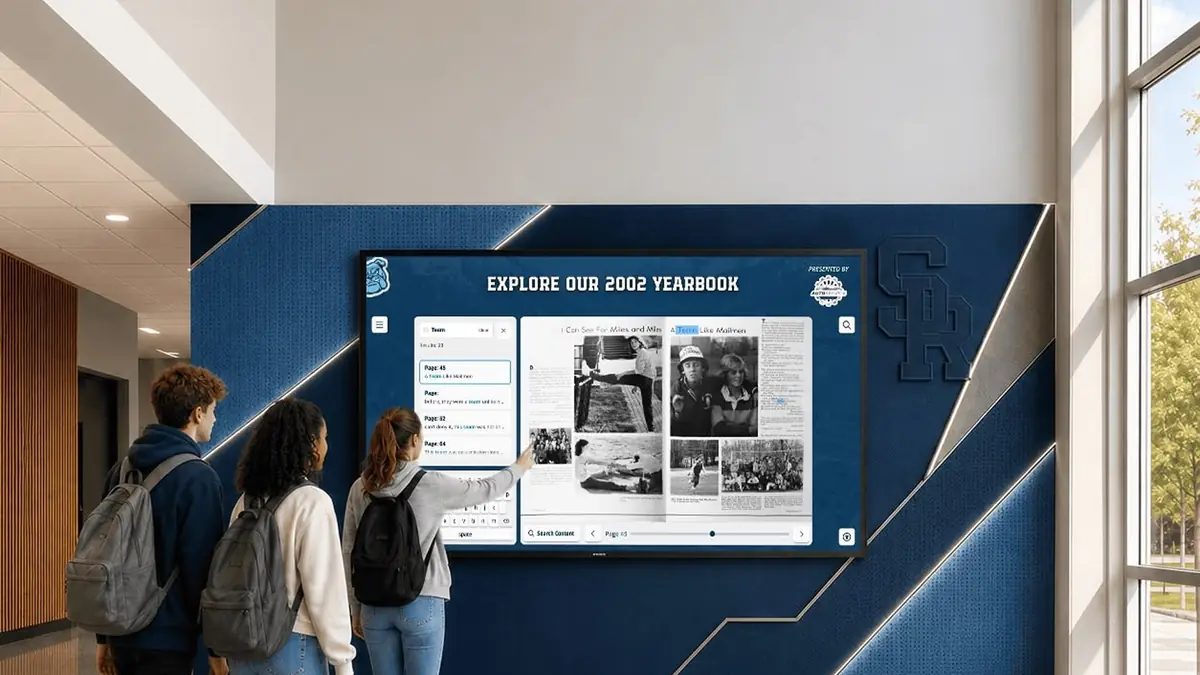
A lobby screen showing last fall’s photos in spring tells everyone nobody is watching it. When the week’s event photos live in Rocket’s library, the person updating the screens can find a fresh shot, check it and put it to use.





Trusted by 1,500+ schools and organizations4.9/5 customer satisfaction
Schools and colleges that run on Rocket





Why it matters
Campus screens go stale when photos are hard to get
Screens need new images every week, but the photos are on other people’s phones. So the same slides run for months and students stop looking up.
Ideas for Photos for Campus Screens
This week’s events
Feature photos from the last few days so the screen feels current to the students who were there.
Spotlights for every program
Rotate photos from arts, clubs and academics alongside athletics so more students see themselves.
Wide, well-lit shots
Choose landscape photos with good light. They read better from across a lobby than tight phone crops.
Then and now
Pair a current photo with one from the same event years ago, pulled from the archive.
Event promos from last year
Use last year’s homecoming photos to promote this year’s, so the screen shows what students can expect.
Recognition highlights
Add photos of new inductees, record-breakers or award winners to a screen near the trophy case.
How it works with Media Management
Photos for Campus Screens, step by step.
Three steps
Find this week’s best shots
Open recent event folders or search by description to find photos worth putting on a screen.
Check details and use limits
Preview each photo and its tags so restricted images stay off public screens.
Use it on the display
Pick the photo for a Rocket display or download a resized copy for other screens. Your demo confirms how this works with your signage setup.
Setups vary by school; your demo confirms what yours will use.
Best practices
Tips to get it right.
Photos for Campus Screens tips
Refresh on a fixed day
Pick one day a week to swap screen photos so the job doesn’t slip.
Choose photos that read from afar
Skip photos with small text or tiny faces. People walking past get a few seconds to take them in.
Keep a screen picks folder
Collect approved screen photos in one folder so a substitute or new staff member can update the display.
Take old photos down
Remove event photos after a couple of weeks so the screen keeps feeling current.
Keep exploring
More Media Management use cases
Questions
Photos for Campus Screens questions
Rocket keeps recent event photos in one library, so the person updating screens can search, check and choose a photo without chasing anyone. Chosen photos can be used on Rocket displays, and your demo confirms how that fits your signage setup.
Rocket’s Digital Signage team checks compatibility with you before anything is ordered. Screen details are welcome at your demo, never required.
Download the original for large screens or a resized copy where a smaller file is better. Your demo confirms the right sizes for your displays.
Pricing for Media Management and any new screens is quoted for the spaces you choose. Your proposal confirms the products and services your school picks.
Your next step
See Media Management in action.
We'll show how your team finds the right photo and puts it to work, start to finish.
