A school calendar on screen that keeps itself current
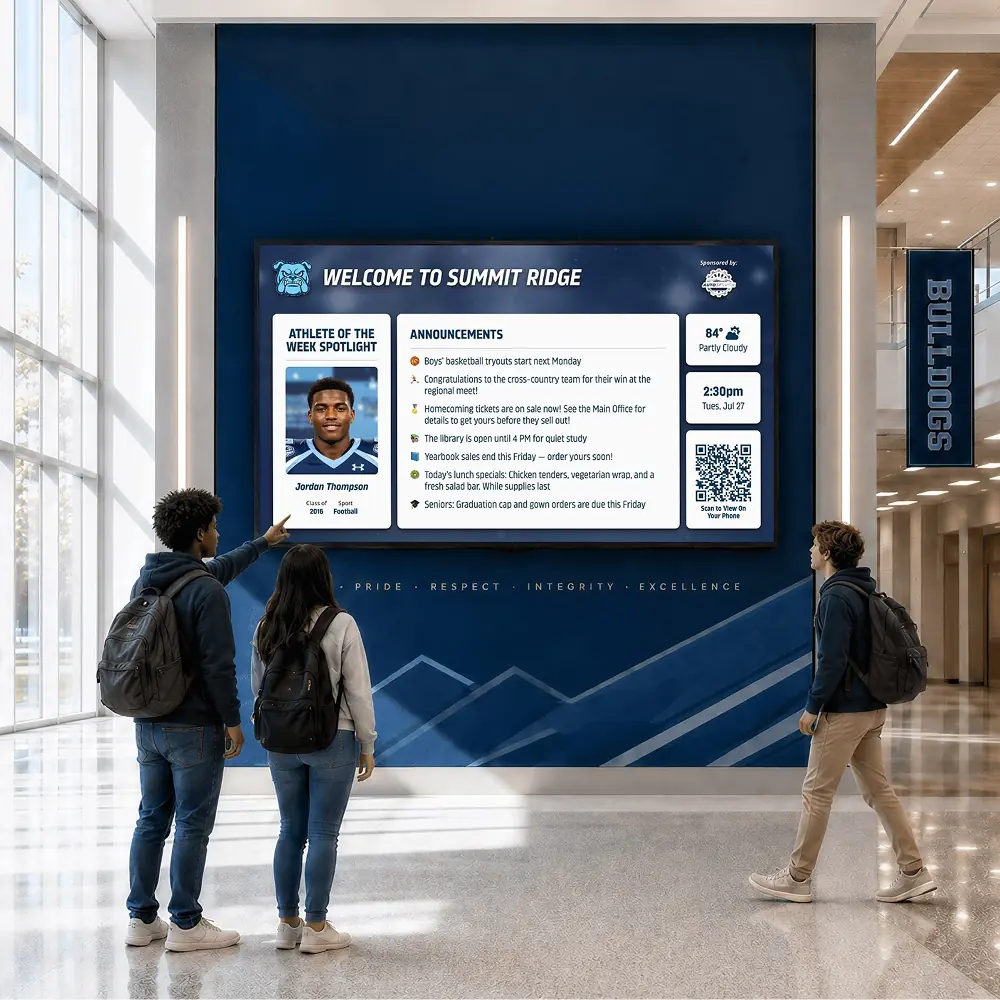
The calendar on the website is complete, but nobody opens it while walking to class. A screen can show the next two weeks of games, concerts, deadlines and days off, with each event timed to appear and disappear on its own.





Trusted by 1,500+ schools and organizations4.9/5 customer satisfaction
Schools and colleges that run on Rocket





Why it matters
The calendar exists, but nobody looks at it
Most schools publish a calendar online, and a printed copy goes home in August. By October it is buried, and students learn about the half day the afternoon before. The dates are right; they are just not where people look.
Ideas for School Calendar
This week’s highlights
One slide with the four or five dates that matter most this week, from picture day to the band concert.
Days off and half days
Give no-school days and early releases their own slide a week ahead, so students can remind their families.
Upcoming games and performances
Pair each event with a photo from your media library so it stands out from the text slides.
Grading period dates
Remind students when the quarter ends and when report cards go home.
Parent nights and conferences
Post conference dates on the front lobby screen, where parents sign in.
A shared Google Slides calendar
If the office keeps a calendar deck in Google Slides, link it once. The screen picks up edits when it refreshes, roughly every 20 minutes.
How it works with Digital Signage
School Calendar, step by step.
Three steps
Add each date as its own item
Create a quick announcement or slide for each event so it can come and go on its own schedule.
Set when each one shows
Start it a week or two before the date and end it when the event is over.
Look ahead once a month
Load the next month’s events in one sitting, and each one starts playing on its own date.
Setups vary by school; your demo confirms what yours will use.
Best practices
Tips to get it right.
School Calendar tips
Two weeks ahead is plenty
Showing the whole semester buries this week. Keep the screen focused on what is coming soon.
Put the day and date together
Write Thursday, Nov. 12 rather than a bare date, so people do not have to count.
Use the official calendar
Pull dates from the same calendar as the website so the screen never disagrees with what went home.
Pick one person to load dates
A monthly check by the same staff member means fewer events slip through.
Keep exploring
More Digital Signage use cases
Questions
School Calendar questions
Each event goes on a screen’s timeline with its own start and end. Items appear when you choose and drop off after the date passes, so the screen shows what is next instead of what already happened.
Plan on adding events as timeline items or linking a Google Slides calendar deck you keep current. Your demo confirms whether anything more is available for your setup.
Most hallway screens work best with the next one to two weeks. Big dates like graduation or the musical can start earlier as their own items.
Each project is quoted for its screens and setup. If you already have hallway TVs, your demo checks whether they can run the Rocket app or take a Rocket Signage Stick.
Your next step
Plan your Digital Signage.
We'll show how an announcement gets on screen and comes off again when the moment has passed.
