Game day screens that get fans to the right gate
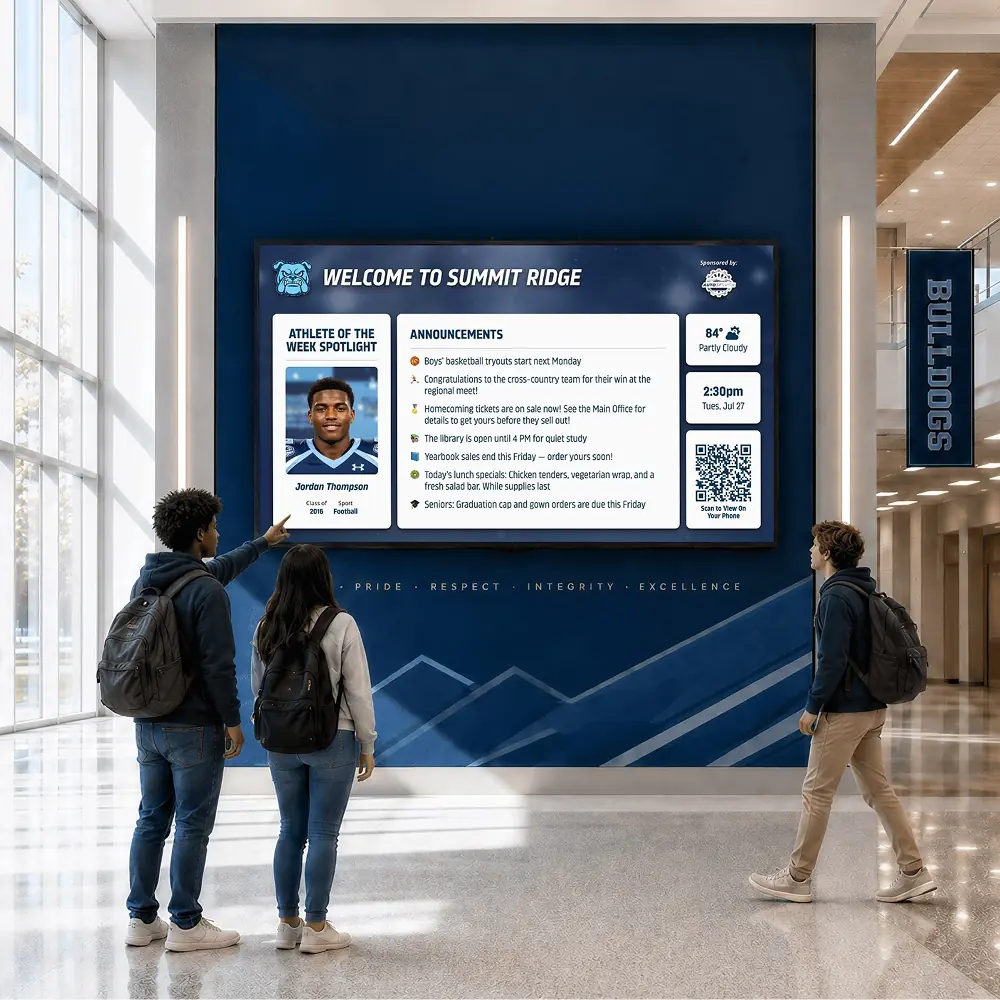
On game day, the questions are simple: who, what time, which gate and how to get a ticket. Put those answers on the lobby and cafeteria screens in the morning and let the slide come off after the final whistle.





Trusted by 1,500+ schools and organizations4.9/5 customer satisfaction
Schools and colleges that run on Rocket





Why it matters
Game details live in too many places
The schedule is on one website, tickets are on another and parking is in a coach’s email. Students and families ask the front office the same questions all day. A screen in the right spot answers most of them first.
Ideas for Game Day Screens
Opponent, time and location
Lead with the matchup and the start time in large type. Add home or away so nobody drives to the wrong field.
Ticket and entry details
Say where tickets are sold and what students need to bring, such as a school ID.
Parking and gate information
Tell families which lot opens first and which gate to use. It saves the athletic office a stack of phone calls.
Senior night or theme night
If it’s senior night, a pink-out or a student section theme, say so on the screen so people come ready.
Photos from the last home game
Add highlights from your photo library so the screen shows the team as well as the schedule.
Local weather before kickoff
Show the forecast for your ZIP code near the game details so fans know whether to bring a jacket or a poncho.
How it works with Digital Signage
Game Day Screens, step by step.
Three steps
Make the matchup graphic
Create it in Rocket Graphics with your logo and colors already in place, download it and add it to the screen’s timeline.
Schedule it for the day
Set the slide to start in the morning and end the night of the game. Drag it to the front so it plays first.
Point each screen at its crowd
Each screen plays its own timeline, so the gym lobby can lead with the game while the library screen keeps its usual mix.
Setups vary by school; your demo confirms what yours will use.
Best practices
Tips to get it right.
Game Day Screens tips
Post it the day before, too
A preview slide the day before helps students plan rides and families plan dinner.
Keep one game per slide
On doubleheader nights, give each game its own slide instead of crowding them together.
Use your team’s photo, not clip art
Students look twice at a teammate. Stock art of a football doesn’t get the same glance.
Hide postponed games, don’t delete
If weather moves the game, hide the slide, change its dates and bring it back when the new time is set.
Keep exploring
More Digital Signage use cases
Questions
Game Day Screens questions
Start with the opponent, start time, location and how to get tickets. Add parking, gate and theme-night details if they apply. Keep it short enough to read while walking past.
You add the game graphic to a screen’s timeline, give it a start and an end and move it to the front of the line. When the end time passes, it leaves the screen and the timeline carries on.
Signage plays the announcements, photos, video and slides on each screen’s timeline. Ask about live scores in your demo, which confirms what your setup supports. Many athletic offices post final scores in a recap the next morning.
Start with the screen fans pass most, often the gym lobby. Share the make and model of your current TVs if you have them, and we’ll check compatibility and quote the screens and setup you pick.
Your next step
Plan your Digital Signage.
We'll show how an announcement gets on screen and comes off again when the moment has passed.
